


Monitor Temperatures from connected devices from the ThermoWorks Cloud
- Michael Iem

- Nov 14, 2024
- 3 min read
Updated: Dec 2, 2024
In today’s fast-paced world, staying connected to the things that matter has never been more important—especially when it comes to cooking. ThermoWorks Cloud allows you to monitor your cooking temperatures in real-time from anywhere, directly on your smart devices like your iPhone or Android phone and smartwatch.
By connecting your ThermoWorks devices to the ThermoWorks Cloud, you’ll be able to keep a close eye on your food’s temperature, receive alerts if adjustments are needed, and eliminate the need for outdated pop-up timers. This guide will walk you through the simple steps to link your ThermoWorks devices to the cloud, making it easy to achieve perfectly cooked meals with precision and peace of mind.

Monitor Temperatures 24/7 from Anywhere
Make sure temperatures stay within optimal ranges for things that are important to you. Watch over everything from cold holding temperatures in restaurant fridges and freezers, to day-to-day temps in your cabin, greenhouse, or wine cellar.
Track Process Temperatures to Completion
When cooking or chilling takes longer than a few minutes, enjoy the freedom of moving on with your day with confidence that you’ll be there when you need to be. Watch over processes like cooking BBQ meats in your smoker, fermenting and cooling homebrewed beer, or chilling ice cream.
1. Set Up Your ThermoWorks Cloud Account
Go to ThermoWorks Cloud and click on "Create Account" or "Log In" if you already have an account.
Fill in the necessary information, including your name, email, and a secure password. Follow the prompts to confirm your email if required.
2. Link Your ThermoWorks Device
Ensure that your ThermoWorks device is compatible with ThermoWorks Cloud (check the device manual for specific instructions).
Power on your ThermoWorks device and connect it to your Wi-Fi network by following the in-app or device instructions.
3. Connect the Device to Wi-Fi
Some ThermoWorks devices, like the ThermaQ Blue, need to be connected to Wi-Fi for cloud access.
Follow the setup instructions for Wi-Fi connection. If your device has a screen, navigate to settings, find Wi-Fi, and enter your network credentials.
Once the device connects to Wi-Fi, it should be ready to sync with the ThermoWorks Cloud.
4. Register the Device on the ThermoWorks Cloud Platform
Log in to your ThermoWorks Cloud account and select "Devices" from the dashboard.
Click on “Add Device” and follow the prompts to register your device by entering its unique device ID, which is typically found on the back or bottom of the device.
Once registered, the device should appear in your ThermoWorks Cloud account.
5. Set Up Alerts and Notifications (Optional)
After your device is connected, go to “Alerts” in your ThermoWorks Cloud dashboard.
Configure temperature alerts, notifications, and thresholds according to your needs. This can help you receive notifications on your iPhone or smartwatch whenever temperatures exceed or fall below your set limits.
6. Install the ThermoWorks App on Your iPhone
Download the ThermoWorks app from the App Store if you haven’t already. Sign in with the same ThermoWorks Cloud account credentials.
Open the app, and you should see your connected devices and their real-time temperature readings.

7. Set Up Your Smartwatch (Optional)
Ensure your smartwatch is paired with your iPhone and that notifications are enabled for the ThermoWorks app.
Once paired, any temperature alerts or updates set up in the ThermoWorks Cloud should display on your smartwatch.
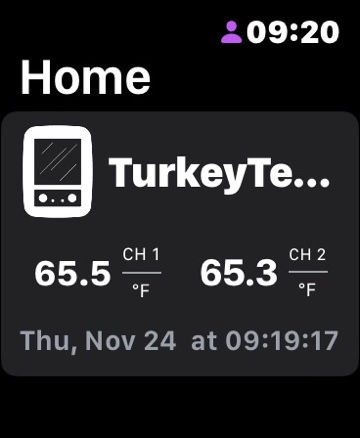
8. Test and Verify
Confirm the connection by observing real-time temperature data on your iPhone or smartwatch.
Adjust any settings in the ThermoWorks app or Cloud account as needed to ensure everything is functioning correctly.
Summary
Connecting your ThermoWorks devices to the ThermoWorks Cloud brings precision and convenience to your cooking. With this setup, you can monitor real-time temperature data directly on your iPhone and Apple Watch, allowing you to step away from the kitchen without losing control of the process. Through the ThermoWorks app, you’ll receive alerts when adjustments are needed, helping you avoid overcooking or undercooking your food. This quick setup guide makes it easy to link your devices, set up custom alerts, and get the most out of your ThermoWorks tools for perfectly cooked meals every time.


Comments